Migrate a WordPress Site to New Hosting Without Data Loss | 2026 Guide | Host Serve
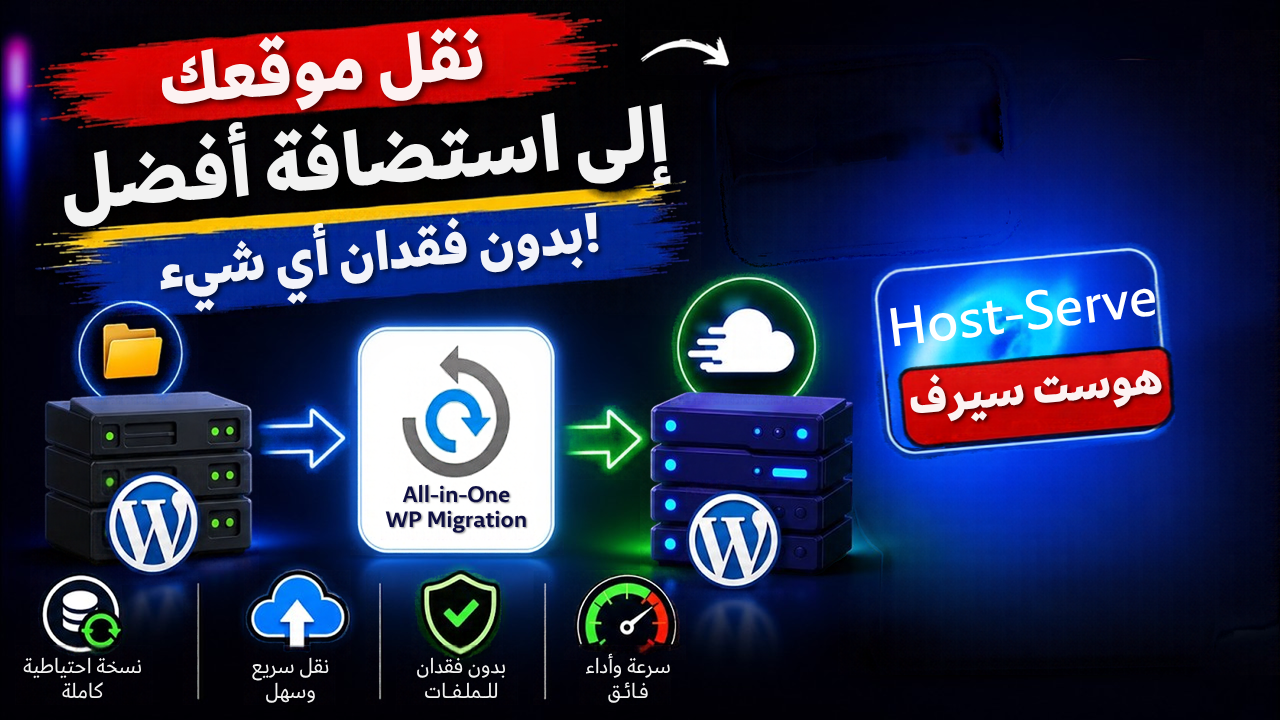
Migrate a WordPress Site to New Hosting Without Data Loss: A Step-by-Step Backup and Verification Guide
The decision to move your site to new hosting usually comes after frustration: constant slowness, repeated downtime, or support that doesn’t respond. But the biggest worry for any site owner is: what if I lose my data during the move? What if my posts, images or customers’ orders disappear?
The truth is that migrating a WordPress site to new hosting without data loss is entirely possible and methodical, as long as you follow the right order: backup first, then an organized move, then careful verification before you give up the old hosting.
In this guide, we walk you through the complete steps in three ways, a thorough post-move checklist, mistakes that cause data loss, and how the Host Serve team can help.
Why Do Sites Lose Data During Migration?
Most data-loss cases aren’t caused by a “mysterious failure”. They come from known, avoidable causes:
- No backup taken before starting, so there’s nothing to go back to.
- The database changing during migration: new comments or orders arrive after the copy was taken and don’t make it across.
- An incomplete database export, or an import that stopped because of file size or timeout limits.
- Forgetting hidden files such as
.htaccess, which breaks permalinks. - A wrong search-and-replace of the site address that corrupts serialized data.
- Cancelling the old hosting too early, before confirming everything is intact.
- Overlooking email tied to the domain or the old hosting.
Before You Start: Preparing for a Safe Move
1. Take a Full Backup and Store It Off the Server
You need two complete copies:
- Site files: the
wp-contentfolder (themes, plugins and uploads) pluswp-config.phpand.htaccess. - The database: exported from phpMyAdmin or with a backup plugin.
Save the copy on your computer or separate cloud storage, not only on the old server.
2. Take Inventory of Your Current Setup
Record this from the old hosting:
- The PHP version in use.
- The list of plugins and themes and their versions.
- Any scheduled tasks (cron).
- Email accounts tied to the domain.
- Your SSL certificate and any special redirect rules.
- Any custom settings in
wp-config.phpor.htaccess.
3. Choose a Quiet Time to Migrate
Pick a time with low traffic, and for stores a time with few orders.
4. Update Everything and Confirm the Site Works Properly
Don’t migrate a site with errors, because they’ll travel with it. Update WordPress and your plugins, and confirm the site runs normally.
5. Prepare the New Hosting
Subscribe to the new hosting, get your cPanel login details, and make sure the plan fits your site’s size and data.
Method 1: Free Migration by the Host Serve Team (Easiest and Lowest Risk)
Host Serve offers free website migration on all plans. According to the company’s plan page, the support team migrates your whole site after your subscription is active, and you only need to send your old hosting details through technical support.
How to use it safely:
- Activate your subscription on the new hosting.
- Contact technical support and send your old hosting login details.
- Keep your own independent backup throughout, as your last safety net.
- When the move is done, run the checklist below before changing anything on your domain.
Method 2: Migrating with a Copy-and-Move Plugin
Specialized plugins wrap the entire site (files and database) into a single package that’s restored on the new hosting, such as Duplicator, UpdraftPlus and All-in-One WP Migration. They suit beginners and small to medium sites.
General Steps
- Install the plugin on the old site.
- Create a full package and download it to your computer.
- On the new hosting, install a clean WordPress (see how to install WordPress on hosting).
- Install the same plugin and import the package.
- Follow the plugin’s wizard to restore the site, then run the checklist.
Note: For large sites, these plugins can fail because of memory, timeout or file size limits. In that case, manual migration or the free migration by support is the better option.
Method 3: Manual Migration (Full Control)
Step 1: Copy the Site Files
Download the whole site folder (including hidden files) via FTP or cPanel’s File Manager, or zip it and download the archive.
Step 2: Export the Old Database
In phpMyAdmin, select your site’s database, then Export using the quick method and SQL format. If the database is large, use compression or a command-line tool to avoid interruption.
Step 3: Upload the Files to the New Hosting
Upload the files to public_html (or the target domain’s folder) in the new cPanel, and extract them if needed.
Step 4: Create a New Database and User
From MySQL Databases in the new cPanel: create a database and a user with a strong password, and link them with all privileges.
Step 5: Import the Database
In the new phpMyAdmin, select the new database, then Import and choose the SQL file. If you see a size-exceeded message, compress the file or ask support to raise the limits or import it for you.
Step 6: Edit wp-config.php
Update the connection details to the new database: database name, username, password and host.
Step 7: Change the Site Address Only If Needed
If the domain stays the same, there’s nothing to change. If the domain changes, use a search-and-replace tool that handles serialized data, and don’t edit the SQL file with a plain text find-and-replace.
Step 8: Test the Site Before Switching the Domain
Edit the hosts file on your computer to temporarily point the domain to the new hosting’s IP address, then open your site and confirm it works, without affecting your current visitors. For the technical details on DNS and TTL, read steps to move your site without downtime.
Step 9: Resave Your Permalinks
Under Settings → Permalinks, click save to rebuild the .htaccess rules.
The Post-Migration Checklist (Before Switching the Domain and Cancelling the Old Host)
Go through these items one by one:
ItemWhat to VerifyHomepageDisplays correctly with no errorsPosts and pagesCount matches the old siteImages and mediaAll appear and the media library is intactUsersAccounts and roles are presentPlugins and themesThey work and their settings are savedFormsThey submit and the messages arrivePermalinksThey work with no 404 errorsWooCommerce (if used)Products, orders, customers, payment and cart are intactSSLThe site opens on https with no warningEmailMailboxes work, sending and receivingSettingsSitemap, robots and analytics toolsBackupsEnabled on the new hostingSpeedCompare against the old site’s results
What About WooCommerce Stores and Fast-Changing Sites?
Stores and membership sites change data every minute (orders, sign-ups, comments), so the risk of losing the newest data is higher. The right approach:
- Start the migration at the lowest-activity time.
- Move the full site and test it on the new hosting.
- Before the final switch, do a last sync of any orders or data that arrived after the copy was taken, or pause orders for a few minutes.
- Switch the domain, then monitor the site closely.
The Rollback Plan: Don’t Burn Your Bridges
- Keep the old hosting active for at least 7 to 14 days after the switch.
- Keep the original backup until you’re completely sure everything is intact.
- Monitor the site during the first week: errors, speed, email and analytics.
- If a critical problem appears, you can temporarily point the domain back to the old hosting.
Common Mistakes When Migrating WordPress
- Migrating without an independent backup.
- Cancelling the old hosting right after the move.
- Editing the SQL file with a plain find-and-replace and corrupting serialized data.
- Forgetting email and MX settings.
- Ignoring the .htaccess file and hidden files.
- Not testing the site before switching the domain.
- Not checking WooCommerce and orders after the move.
What Does Host Serve Offer to Make Migration Easier?
Here are the main specs advertised on the company’s website at the time of writing:
- Free website migration on all plans after your subscription is active.
- A familiar cPanel control panel, and unlimited databases on the Business plan.
- Free backups: weekly on the Business plan and daily on the Professional plan.
- Free SSL that activates automatically.
- LiteSpeed servers and NVMe SSD storage, with a dedicated WordPress cache.
- 24/7 support in Arabic.
- Plan upgrades anytime without service interruption.
- Refund option: the company states you can request one within the first 30 days. See the refund policy.
Host Serve Web Hosting Plans
Prices are as listed on the company’s website at the time of writing and may change with promotions.
PlanMonthly Price (First Year)WebsitesStorageRenews Yearly AtStarter$2.501 website5 GB NVMe$59.88Business ★ Most Popular$3.253 websites20 GB NVMe$79.97Professional$5.19Unlimited50 GB NVMe$139.00
All plans include unlimited bandwidth, free SSL and free website migration.
Note: The monthly price shown is the annual plan price after discount, and the subscription renews at the rate in the renewal column. Review the plan details before you buy.
Frequently Asked Questions
Can a WordPress site be migrated with no data loss at all?
Yes, if you take an independent backup, follow the right order, and verify the result before switching the domain and cancelling the old hosting.
Does migrating a site affect its Google ranking?
A clean migration that doesn’t change your URLs and doesn’t produce errors usually doesn’t harm rankings. Make sure your links, SSL and speed are intact after the move.
Does Host Serve migrate my site for free?
Yes, website migration is free after your subscription is active, and you need to send your old hosting details through technical support.
How long does migration take?
It depends on file size, database size and the method, and usually takes from minutes to a few hours for typical sites.
Do I need to take my site offline during migration?
Not necessarily. Testing through the hosts file lets you prepare without affecting visitors. For stores, a final sync or a short pause before the switch is advisable.
What should I do about email during migration?
If your email is on the old hosting, set it up on the new one, then update the MX records when you switch the domain, and confirm messages arrive before cancelling the old hosting.
Can I migrate on my own?
Yes, using either a copy-and-move plugin or the manual method, and if you need help, support is available 24/7.
How much does hosting cost?
It starts from $2.50 per month for the first year on the annual plan, then renews at each plan’s listed price.
Conclusion
Migrating a WordPress site to new hosting without data loss isn’t a big gamble if you follow the order: an independent backup, an organized move (by support, with a plugin or manually), careful verification, then keeping the old hosting for a safety window. Host Serve offers free migration, cPanel, NVMe and LiteSpeed, free SSL and 24/7 Arabic support, with plans starting from $2.50 per month.
Get started:
Contact: WhatsApp +201557521635 | Phone +201113541635 | support@host-serve.com
Related Posts


💬 Comments
No comments yet — be the first to comment!